See the examples

Here you can explore the sample scenes included with ProPixelizer. Each one focuses on a practical technique you can inspect, adapt, and use in your own Unity project.

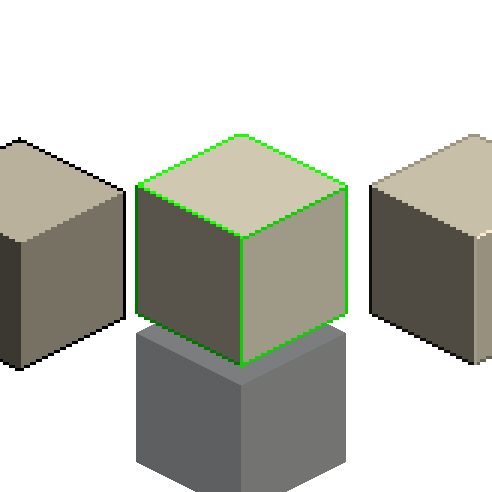
Pixel-art cubes showing different edge and outline treatments

Edges and Outlines

Compare silhouette outlines, edge highlights and lit bevel edges.

Read the guide

No Creep

Eliminate pixel creep from moving objects.

Read the guide

World Space Pixel Size

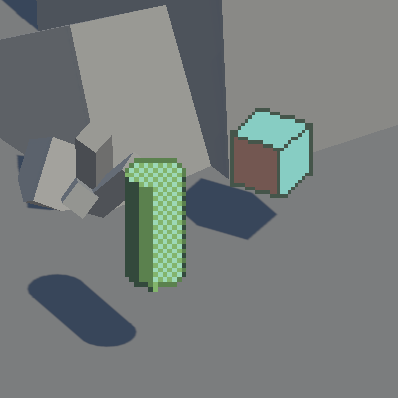
Maintain a consistent pixel size across different camera zooms and screen resolutions.
Read the guide
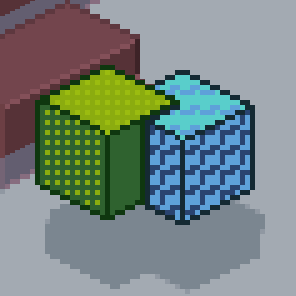
Pixel-art objects using several palettes and dither patterns

Color Palettes

Explore color palettes and dither patterns. ProPixelizer contains tools for creating your own dither patterns and palettes.
Read the guide

ShaderGraph

Use ProPixelizer to create your own pixelart shaders.

Read the guide
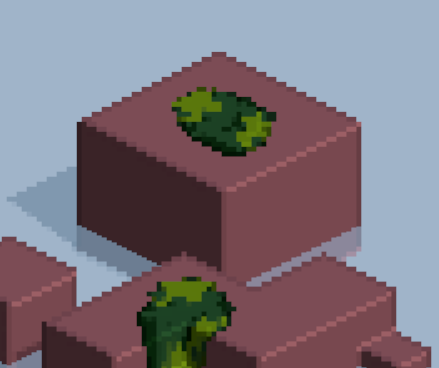
Two connected pixel-art cubes demonstrating pixel alignment

Pixel Alignment

Restrict sub-pixel motion between related objects, such as equipment attached to a character.
Read the guide
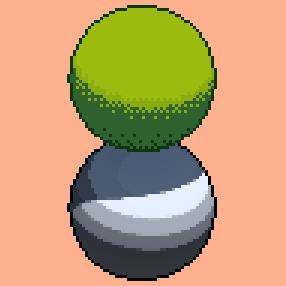
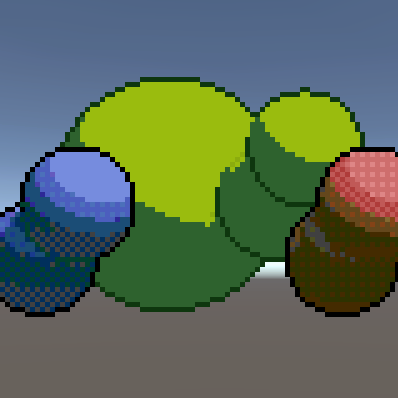
Several outlined pixel-art spheres rendered with stacked cameras

Camera Stacking

Apply ProPixelizer to different cameras within a URP camera stack.

Read the guide

Multiple Lights

ProPixelizer supports both Forward and Forward+ for virtually unlimited additional lights.
Read the guide

Import the sample scenes

In Unity's Package Manager, choose Packages: In Project, select ProPixelizer, open the Samples tab, and select Import. Each scene includes a readme in its hierarchy with setup notes and further suggestions.

Unity Package Manager with the ProPixelizer Samples tab open and the Import button highlighted
The Samples tab in Unity's Package Manager.